
Wege Prize 2027: Accessing Judges’ Feedback with Kami
The judges’ feedback on your Phase 1 submission is left as comments on your PDF. To view it, you’ll use Kami, a cloud-based PDF annotation app that works with Google Drive. Follow the steps below.
Part 1Find your Phase 1 submission
-
Open Google Drive
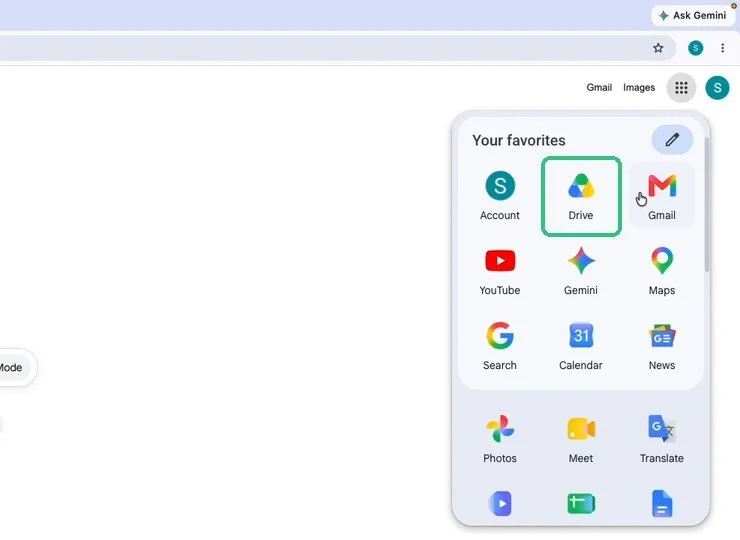
On the Google homepage, click the Google apps menu (the grid icon, top right) and select Drive.
-
Open your team folder
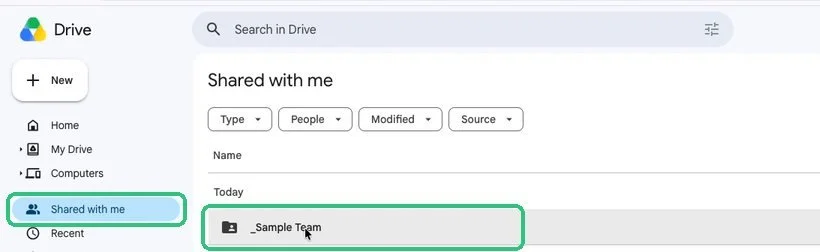
Click Shared with me in the left sidebar, then double-click the folder with your team’s name. (A sample team is shown here.)
-
Open your submission
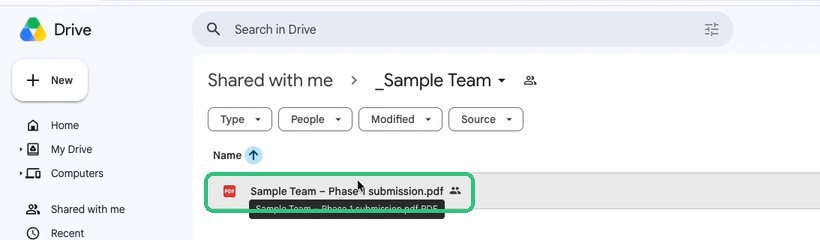
Double-click your team’s Phase 1 submission PDF to open it.
Part 2Install Kami (one time only)
You probably don’t have a PDF annotation app connected to Drive yet. If Kami is already installed, skip to Part 3.
-
Connect a new app
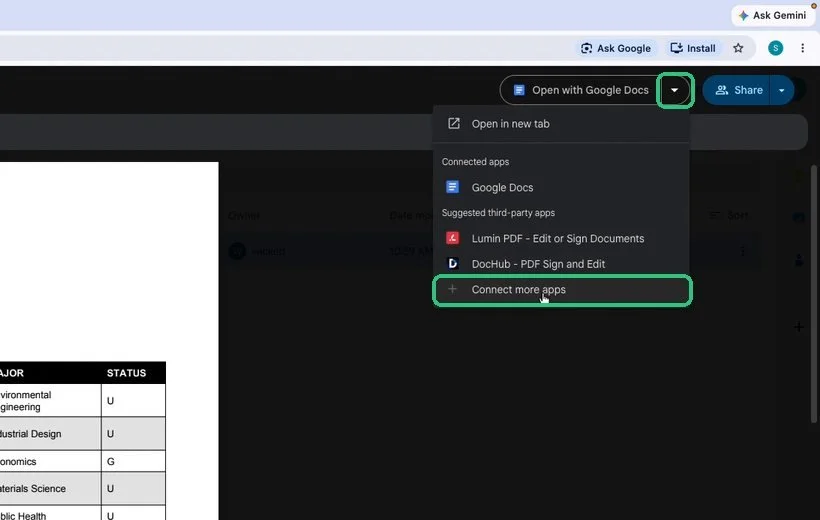
At the top of the PDF preview, click the arrow next to Open with Google Docs and choose Connect more apps.
-
Find and install Kami
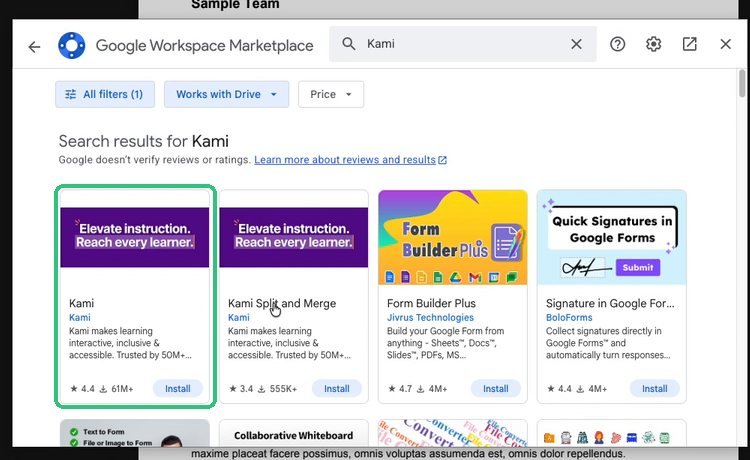
In the search box, type Kami. Select Kami (not Kami Split and Merge) and click Install.
-
Approve the first screen
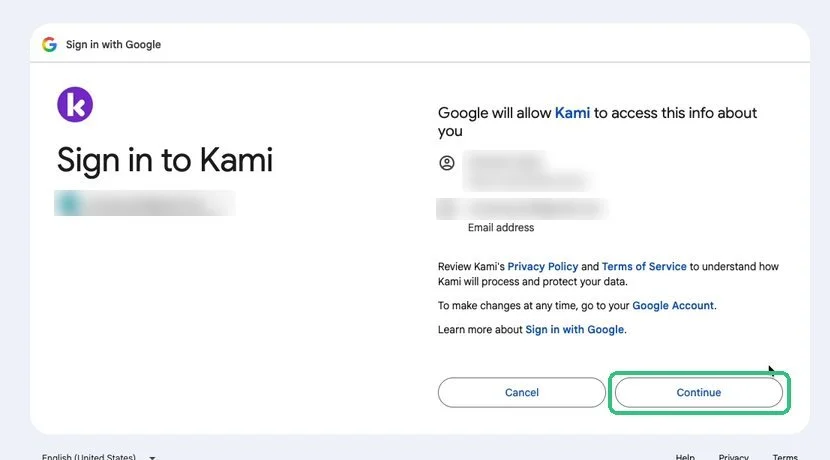
On the first permissions screen, click Continue.
-
Select only the required permissions
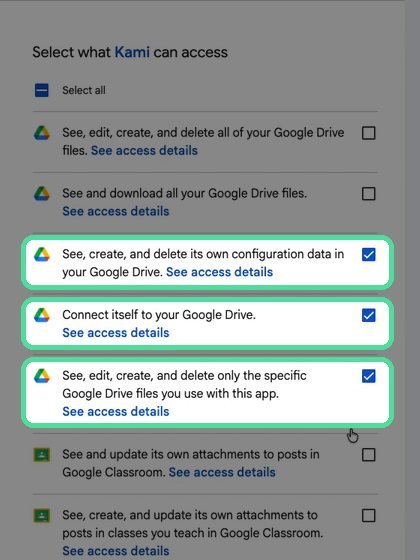
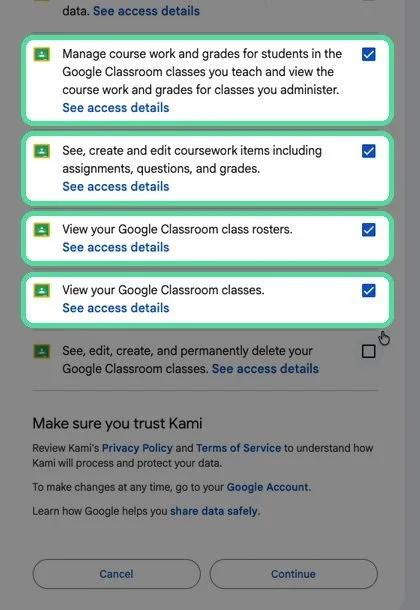
Don’t click “Select all.” Check only the 7 permissions below.Google Drive (3)
- See, create, and delete its own configuration data in your Google Drive
- Connect itself to your Google Drive
- See, edit, create, and delete only the specific Google Drive files you use with this app
Google Classroom (4) — scroll down
- Manage course work and grades for students in the Google Classroom classes you teach and view the course work and grades for classes you administer
- See, create and edit coursework items including assignments, questions, and grades
- View your Google Classroom class rosters
- View your Google Classroom classes
Then click Continue.
Part 3Open your submission in Kami
-
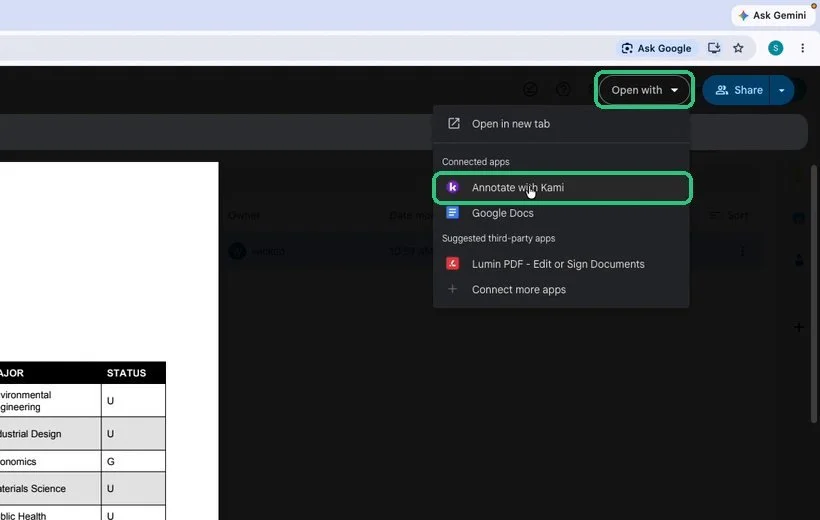
Open with Kami
Back in Drive, click Open with and choose Annotate with Kami.
-
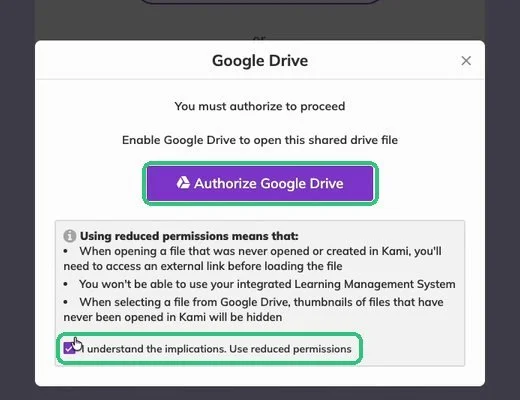
Confirm reduced permissions
This screen is an extra check to confirm the reduced permissions you chose. Click Learn more, check I understand the implications. Use reduced permissions, then click Authorize Google Drive.
-
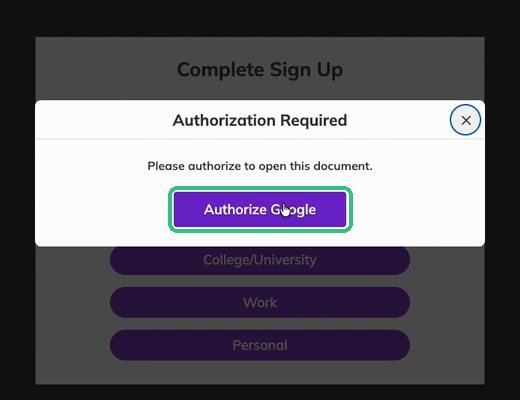
Authorize again
When Authorization Required appears, click Authorize Google.
-
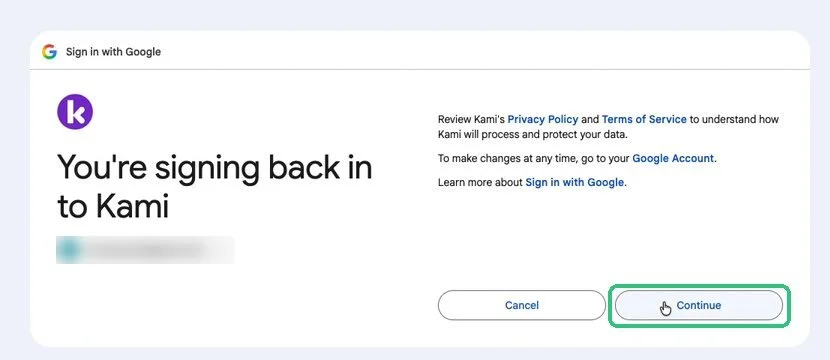
Sign back in
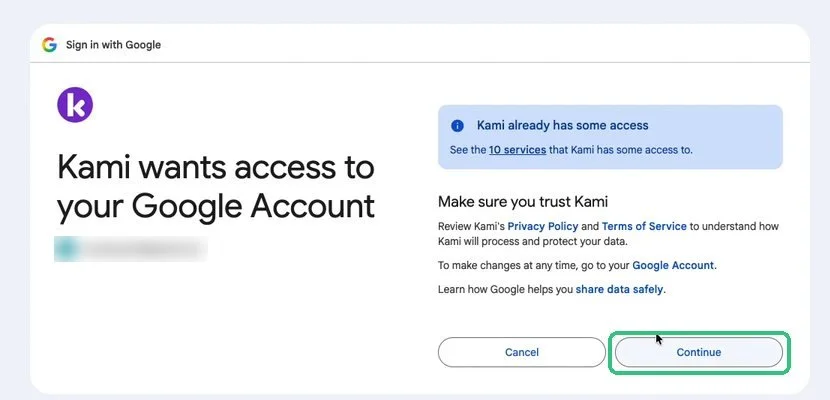
On the sign-in screen, click Continue.
-
Confirm existing access
This screen just confirms permissions you’ve already granted. Click Continue.
-
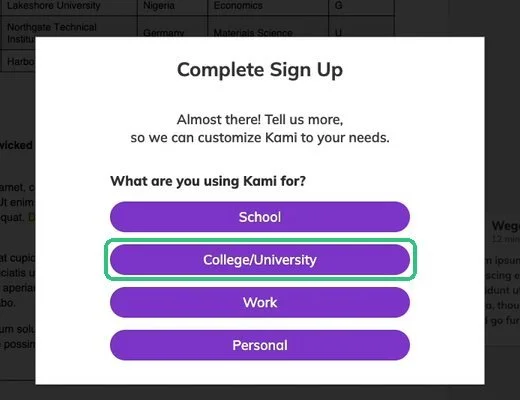
Finish setup
When Kami asks what you’re using it for, choose College/University, then click Finish.
Part 4Read the judges’ comments
-
Skip the toolbar
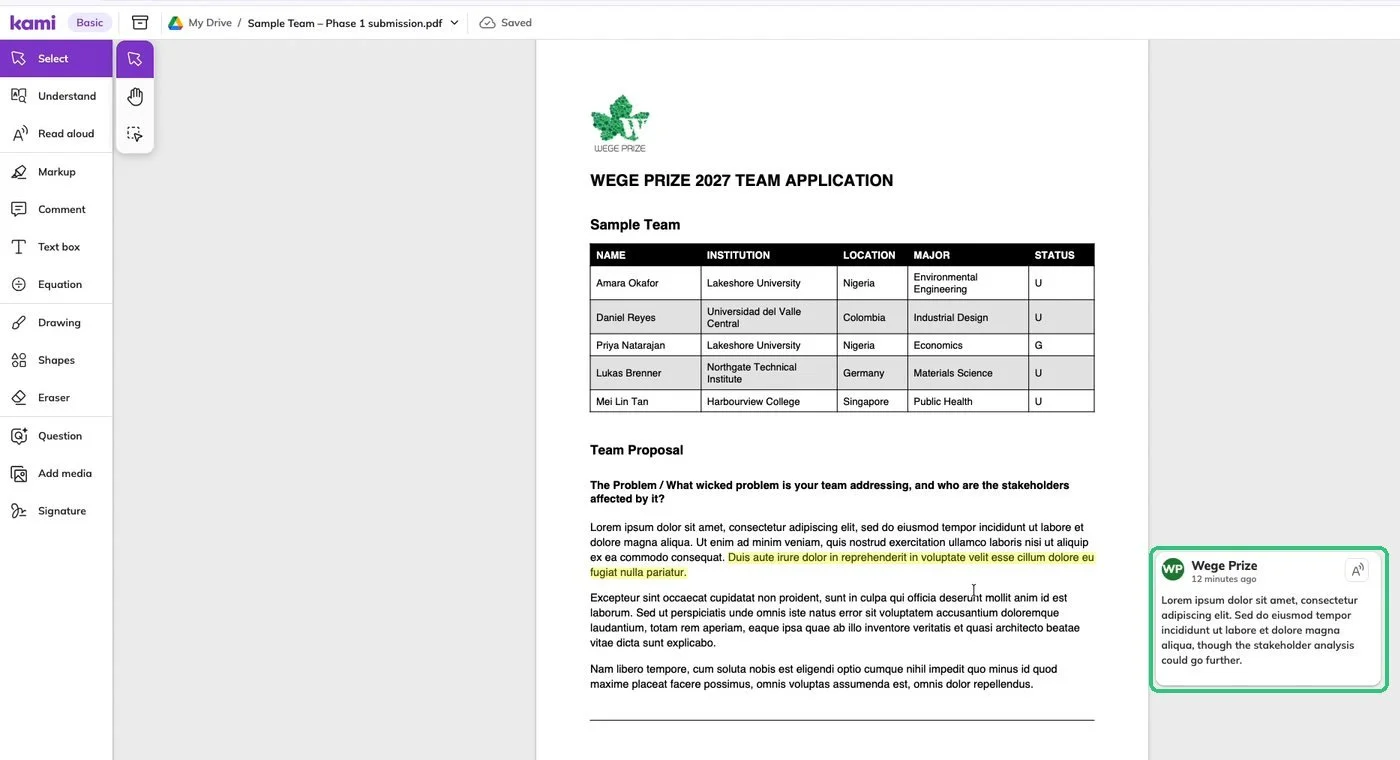
You’re in. You don’t need any of the tools on the left side — you’re only using Kami to view the comments the judges left for you.
-
Find comments in the sidebar
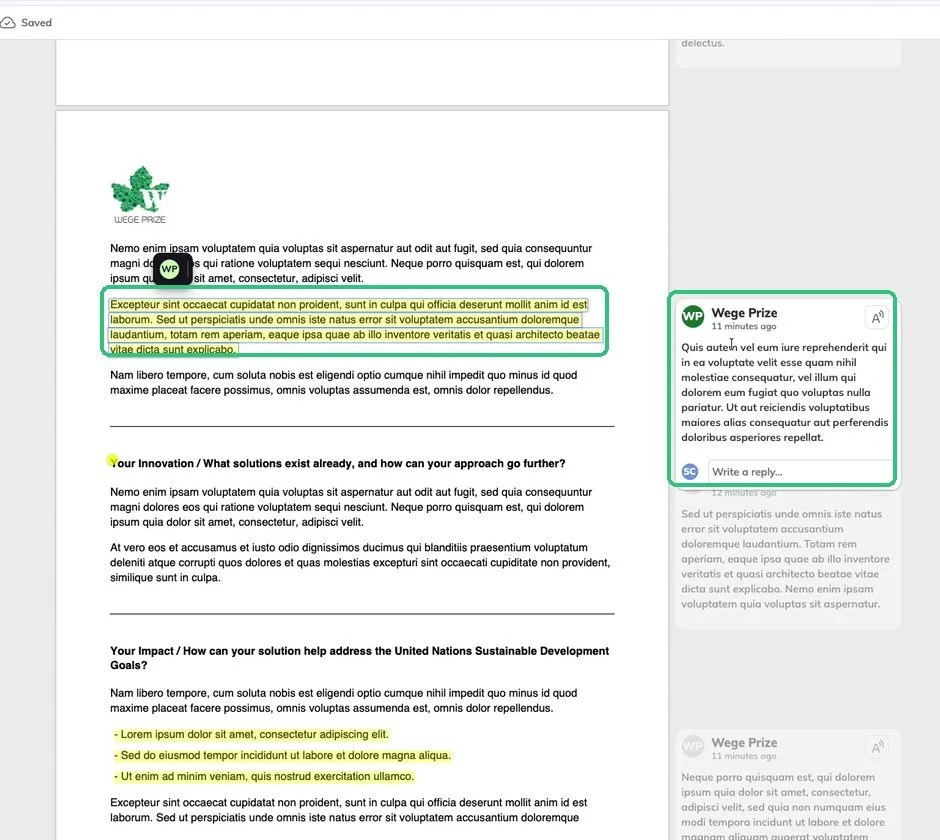
As you scroll through your application, comments appear in the sidebar. Hover over a comment to outline the passage it refers to.
-
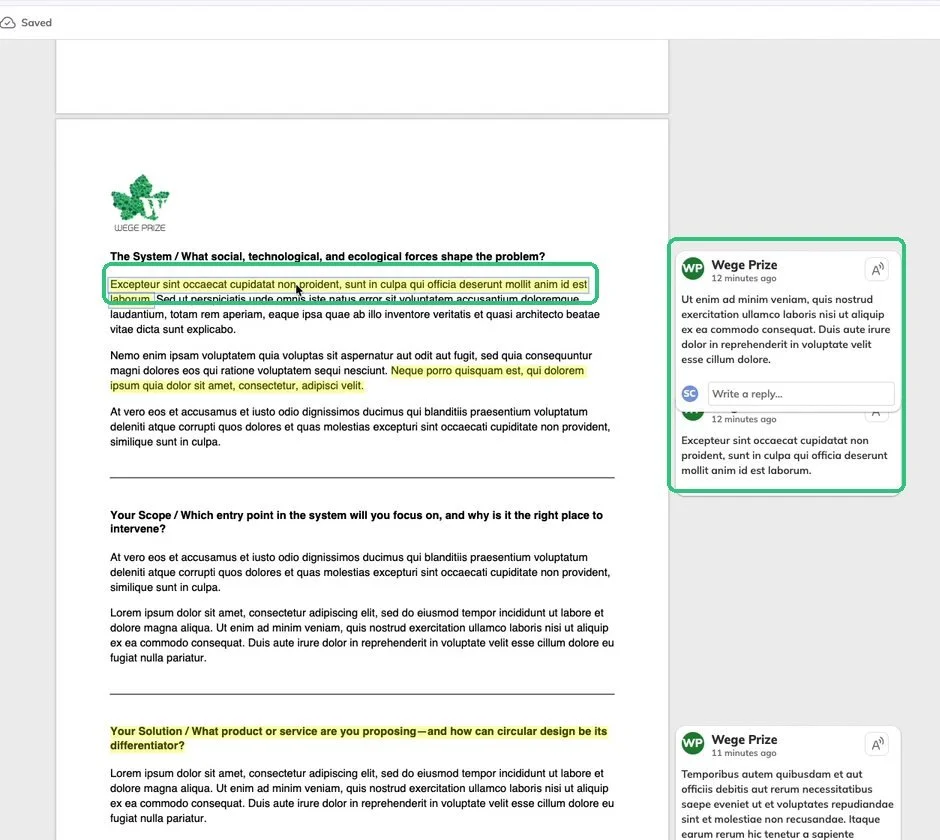
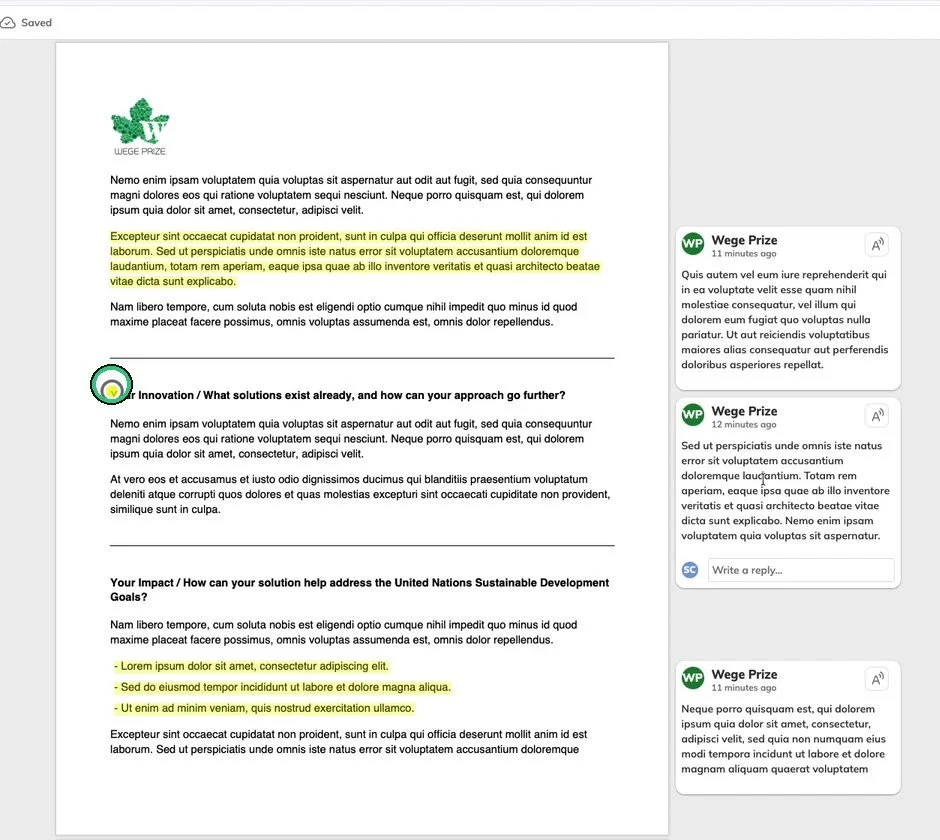
Outlined text and push pins
Some comments are tied to an outlined passage of text. Others are tied to a push pin.
-
Match comments to text
Click outlined text to show the comment it refers to, or hover over a comment to see the text it refers to.
Part 5Download a copy (optional)
-
Open the export menu
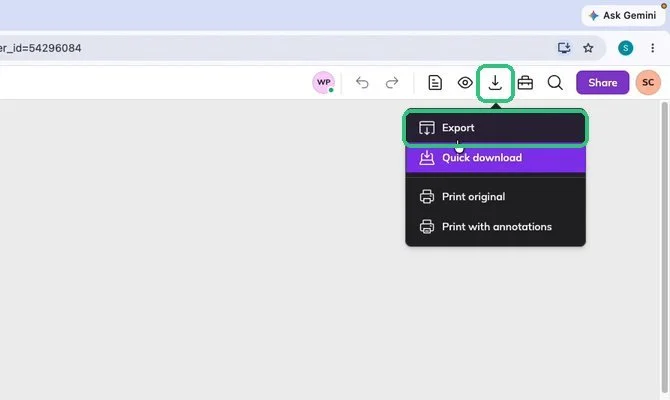
Click the Download/Export button at the top right and select Export.
-
Export with comments
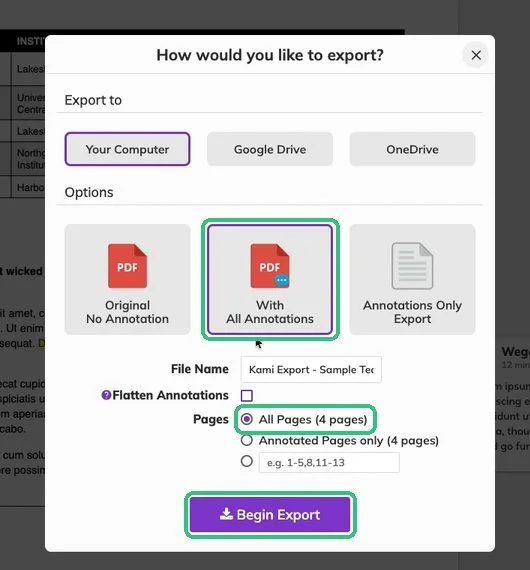
Under Options, choose With All Annotations. Under Pages, make sure All Pages is selected. Click Begin Export to download the PDF to your computer.
Have questions or concerns? Contact us at wicked@wegeprize.org.